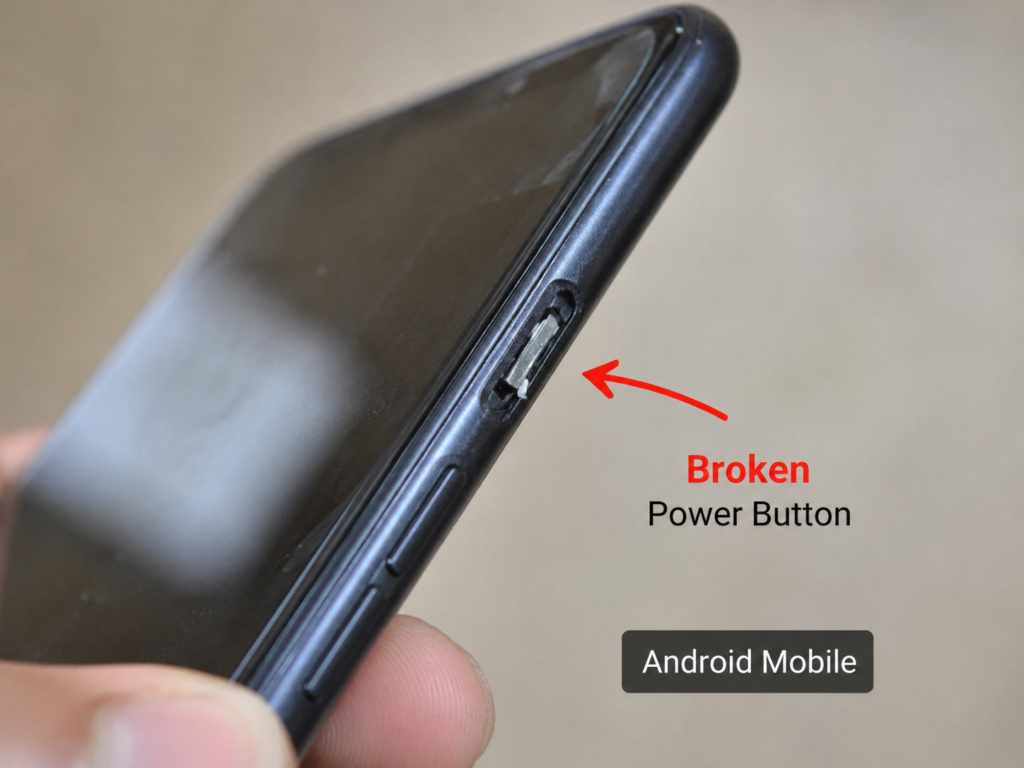
What to Do If Mobile Power Button Is Not Working?
The power button is one of the most important parts of any smartphone. But sometimes the mobile power key stops working due to hardware damage, dust, water damage, or regular wear and tear.
If your mobile power button is not working, don’t worry. Modern Android smartphones include several settings and features that allow you to use your phone without the power key.
In this article, we will explain the best settings and solutions you can use if your mobile power button stops working.
Common Reasons Why Power Button Stops Working
Before trying solutions, it is important to understand the possible causes.
Common Causes
- Physical damage
- Water damage
- Dust inside button
- Loose internal connection
- Software glitches
- Old smartphone hardware
Best Settings to Use If Power Button Is Not Working
1. Enable Double Tap to Wake
Most Android phones now support “Double Tap to Wake.”
This feature allows you to wake the screen by tapping twice on the display.
How to Enable
- Open Settings
- Go to Display
- Find Double Tap to Wake
- Turn it ON
Some brands may call it:
- Tap to Wake
- Double Tap Screen On
- Wake Gestures
2. Use Accessibility Menu
Android accessibility settings provide virtual buttons for important functions.
Steps
- Open Settings
- Go to Accessibility
- Tap Accessibility Menu
- Enable it
Now you can:
- Lock screen
- Take screenshots
- Open recent apps
- Control volume
without using the power key.
3. Use Assistive Touch Apps
Several apps create a floating shortcut button similar to iPhone Assistive Touch.
Popular apps include:
- Assistive Touch for Android
- Power Button to Volume Button
- Floating Menu apps
These apps help you:
- Lock screen
- Restart phone
- Open shortcuts
4. Use Fingerprint or Face Unlock
If the power button is broken, fingerprint and face unlock can help unlock the device quickly.
Enable From
Settings → Security → Fingerprint or Face Unlock
5. Schedule Power On/Off
Some Android phones support automatic power on and off.
Steps
- Open Settings
- Search Scheduled Power On/Off
- Set automatic timings
This can temporarily help if the power key is damaged.
How to Restart Phone Without Power Button
Method 1 – Use Quick Settings
Some phones allow restart options from the notification panel.
Steps
- Swipe down Quick Settings
- Tap Power icon
- Select Restart
Method 2 – Connect Charger
Some devices automatically turn on when connected to a charger.
Method 3 – Use ADB Commands (Advanced Users)
Advanced Android users can use ADB tools through a computer to restart the phone.
Best Temporary Solution
The best temporary setup is:
- Enable Double Tap to Wake
- Use Fingerprint Unlock
- Install Assistive Touch
- Enable Accessibility Menu
This combination allows you to use the phone almost normally.
Tips to Protect Mobile Buttons
Avoid:
- Excessive pressing
- Water exposure
- Dust accumulation
- Cheap covers blocking buttons
Using a good quality mobile cover can also protect hardware buttons.
FAQs
Can I use my phone without the power button?
Yes, Android phones offer several settings like Double Tap to Wake, Accessibility Menu, and fingerprint unlock.
How can I restart my phone if the power button is broken?
You can restart using Quick Settings, charging methods, or Assistive Touch apps.
Which app is best for broken power button?
Assistive Touch and Accessibility Menu apps are popular temporary solutions.
Can power button problems be fixed?
Yes, most power button issues can be repaired by a mobile technician.
Is power button repair expensive?
Usually, power button repair is affordable depending on the smartphone model.
Thank you readers for your valuable support to abcmobiles.in. Your love, trust, and continuous support motivate us to bring the latest tech news, smartphone reviews, gadget updates, and helpful mobile tips every day. We truly appreciate every visit, share, and comment from our amazing readers. Stay connected with ABC Mobiles for more exciting technology updates and reviews.